


CleanBoost - Junk Cleaner
3.4263.00 Reviews
App Specs
- Version
- 1.0.4
- Updated On
- License
- Free
- Downloads
- 10,000,000+
- Developer
- Fadilo Studio
- Categories
- Tools
- Platform
- Android
Screenshots
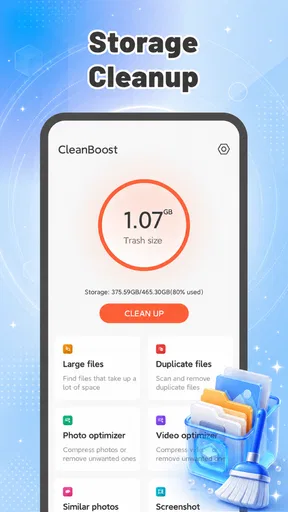
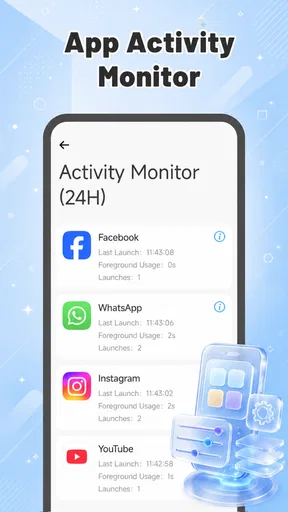

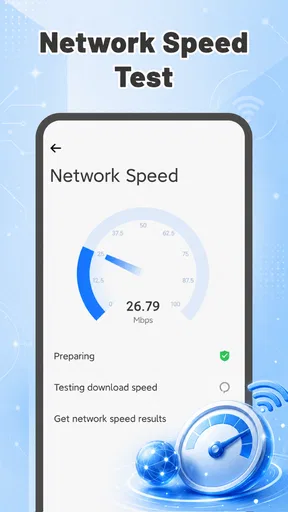
 Analysis by AppCompare
When a phone starts warning me about low storage, I want a clear way to inspect the problem—not a cleaner that makes big promises or encourages me to delete things blindly. CleanBoost is a free Android tools app from Fadilo Studio, presented as a lightweight option for clearing junk files and reclaiming space. That narrow purpose is useful, but it also sets the right expectation: a cleaning app can help with accumulated clutter, while it cannot replace checking what is taking up room or deciding which personal files are safe to remove.
I would consider it when storage pressure is getting in the way of everyday use, especially if I want a dedicated utility rather than hunting through several system menus. I would not treat the name “cleaner” as proof that every suggested deletion is harmless. The sensible approach is to use it as a prompt to review storage, then make deliberate choices about anything I value.
What I’d want to know before cleaning
Before I act on a cleanup suggestion, I’d want to understand what the app has selected and whether I can change that selection. I’d treat the first visit as a chance to inspect its choices, not a commitment to remove anything. That makes the next question more useful: how to weigh convenience against the control I need over files and access.
A modest tool with a clear job
CleanBoost is built around one practical task: helping clear unwanted files and free device storage. That makes it easier to understand than a broad maintenance suite that bundles unrelated functions. Its simplicity may suit someone who wants a straightforward place to start, but it also means I would not choose it expecting a full device-management system or a fix for every cause of a slow phone.
The app has an average rating of 3.4 from around 26,000 ratings, with roughly 263 written reviews, and it has passed 10 million installs. Those figures suggest that many people have tried it, but they are not a substitute for checking whether its approach fits your own device and habits. A storage utility is especially personal: one user’s disposable cache may be another user’s temporarily important offline content.
It is listed for Everyone and is free. The current version is 1.0.4, and the stated minimum Android version is 8.0. Its release date is June 4, 2026. I’d still check that my phone meets the system requirement and that I am installing the intended app before making it part of a regular maintenance routine.
Trust starts with what you can actually inspect
For a cleaner, trust is not an abstract concern. The app’s purpose involves looking at storage, and a user may be deciding whether to remove files that are hard to replace. I would therefore judge it by the choices presented on screen: whether the items selected for cleanup are understandable, whether I can review them before acting, and whether the app gives me a genuine chance to stop.
Worth Reading Before You Choose

Baby Panda World Brings Quick Play to Modern Phones, but Its Game Library Feels Busy

ESPN’s Live Game View Makes Following Close Games Easier

QuizzLand Review: A Good Fit for Short Trivia Breaks, Not Every Player

Basketball Stars: Multiplayer Is Fast, but Can It Recover When Matches Go Wrong?

WEBTOON Turns Phone Updates Into a Better Reading Routine

Link to Windows Runs on Shared Habits, Not Social Feeds
I can’t responsibly claim that CleanBoost has a particular permission model, privacy policy, account system, or data-handling practice without verified details. That does not mean any of those things are good or bad; it means I would inspect the permission prompts and the app’s visible settings rather than rely on assumptions based on its category. If a prompt asks for access I do not understand, I would pause and consider whether that access makes sense for the cleanup task I’m trying to perform.
A useful rule is to distinguish access needed to examine storage from permission to change or remove content. Android may present permissions differently depending on the device and system version, so I would read the actual wording on my phone. Do not approve a request just because a cleaner says it can improve performance. If I cannot tell what an option will affect, I would leave it untouched and use Android’s own storage controls instead.
Make the first cleanup a review, not a race
My first session would be deliberately cautious. I would open the app, note what it identifies, and inspect each category or selection before confirming anything. I would avoid treating a large number or a prominent cleanup button as a reason to proceed quickly. The useful question is not simply “How much space can I clear?” but “What exactly will disappear, and do I need it?”
This matters most with files that may look temporary but support an active workflow. Offline maps, saved media, downloads in progress, and content kept for travel or commuting can all be inconvenient to recreate. Even when an item is technically replaceable, restoring it may take time or mobile data. I would postpone removal of anything tied to a trip, work task, or poor-connection situation until I can verify that I have another copy or no longer need it.
One practical habit is to clean at a calm moment rather than when storage warnings are interrupting something important. If I am about to record a video or install an update, I would first check Android’s storage view and identify the largest safe target. That gives me a reasoned goal and reduces the temptation to approve every suggested action just to make the warning disappear.
Use it around real storage bottlenecks
Imagine I am preparing for a weekend away and my phone says there is not enough room for more photos. I would not start by deleting personal pictures. I would first decide what must remain available offline, then inspect the cleaner’s proposed targets. If CleanBoost presents a category I understand and can review, it may help me find removable clutter; if the selection is unclear, I would back out and inspect files through the phone’s built-in storage screen.
That workflow highlights a non-obvious trade-off: a dedicated cleaner can make the search feel more approachable, yet the device’s own storage manager may give a more familiar view of apps and files. Neither route removes the need for judgement. A cleaner is most useful when it surfaces something I can confidently identify, not when it asks me to trust an unexplained total.
Another good moment to use it is after a period of heavy browsing or app use, when temporary material may have accumulated. I would compare the available space before and after rather than assume that a scan or cleanup has solved a performance problem. If the phone remains slow, storage may not be the cause; I would avoid repeating cleanup actions without a clear target.
Where it fits beside Android’s built-in tools
Android’s built-in storage settings are the natural alternative, and I would choose them when I want to inspect large apps, downloads, or personal files directly. They are also a sensible fallback if I prefer not to add another utility. CleanBoost’s appeal is having a focused cleaner in one place, but the built-in route may be better for users who value seeing the device’s own breakdown and making changes themselves.
File-management apps offer another style of control: they can be useful when I already know which folders or downloads I want to review. The downside is that manual sorting takes more effort. A cleaner may be more convenient as a starting point, while a file manager or Android settings can be more appropriate for a precise decision. I would treat these options as alternatives for different levels of control, not as interchangeable promises of a faster phone.
There is also a difference between freeing storage and improving speed. Removing unnecessary files can help when the phone is genuinely short on space, but it is not a universal performance remedy. If a particular app is misbehaving, I would troubleshoot that app directly. If photos or videos are consuming most of the storage, I would review backups and personal files rather than expect a junk-cleaning tool to solve the larger issue.
Keep control over personal files and access
Storage cleanup becomes data-sensitive when the phone contains private photos, documents, recordings, or work material. Before confirming an action, I would check whether the app is targeting temporary data or user-created content. I would keep a separate copy of irreplaceable files before using any cleanup process, and I would not use a one-tap option if I could not review what it covers.
I would also revisit the choices I made after the first scan. If the app offers visible settings or controls, I would look for a way to change what is selected and to avoid repeating a cleanup automatically. I am not assuming CleanBoost includes a particular schedule, undo function, or account control; those are exactly the kinds of details I would verify in the app itself before depending on them. Where no clear control is visible, the safer choice is to keep the cleanup manual and limited.
For a shared or family phone, I would be even more careful. A person using the device may have saved files that the owner does not recognize, and “unused” does not necessarily mean unwanted. I would ask before clearing anything that could belong to someone else, and I would avoid granting access on a device where the person responsible cannot review the prompts or understand the consequences.
Who should try it—and who should look elsewhere
I’d suggest CleanBoost to an Android user who wants a dedicated, simple place to begin checking for removable clutter and is comfortable reviewing cleanup choices. Its free price makes it easy to consider, and its stated compatibility reaches devices running Android 8.0 or later. The app is most relevant when storage space is the immediate problem and the user is willing to make careful decisions instead of tapping through blindly.
I would steer away from it if you want a detailed file-by-file workflow, prefer to manage everything through Android’s own settings, or are unwilling to inspect access requests and cleanup selections. Someone who stores important offline media or work files should be especially cautious. A phone with ample free space is also unlikely to benefit much from adding a cleaner simply for the sake of routine maintenance.
A sensible way to decide after the first scan
For a less rushed trial, I would treat the first scan as reconnaissance rather than a commitment. I would note the kinds of items it brings forward, close the app, and check the same storage areas through Android if I am unsure. Returning with a specific question—such as whether a suggested category contains disposable files—makes it easier to judge the app’s usefulness than tapping a general cleanup control just to see what happens.
This also answers a practical question: should I use it regularly? I would not put any cleaner on an automatic routine without first understanding what it selects and how I can change that choice. A one-off review after a storage warning may be enough. If the same kinds of removable items keep appearing, I would consider whether a particular app’s own storage settings or download habits are the real source of the buildup.
If the scan seems to find little that I can confidently remove, that is still useful information. It suggests the shortage may come from large apps or personal media rather than the sort of clutter a focused cleaner is meant to address. In that case, reviewing one large app at a time, moving backed-up files, or choosing what to keep offline is a more direct route than repeating a scan and hoping for a different result.
My cautious verdict
My overall view is measured: CleanBoost is worth considering as a focused storage-cleanup helper, not as a reason to hand over your judgement. I would install it only from a source I trust, read each permission prompt, begin with a small and understandable cleanup, and check the result in Android’s storage settings. If the app makes the target clear and leaves me in control, it can be a convenient starting point; if not, the built-in tools are the better choice.
In the end, I would decide based on what the app actually lets me inspect and control on my own phone, not on the promise implied by the word “cleaner.” It may suit someone who values a focused starting point and is willing to review every proposed action. If you need precise handling of personal files, or simply prefer the familiar controls already in Android, skipping another utility is a perfectly reasonable choice.
Pros
- Quick scans make it easy to spot files taking up storage space.
- A straightforward interface is approachable for first-time users.
- The app can help organize cluttered files before you remove them.
- Useful for users who want a dedicated place to review storage usage.
- Cleaning options let you choose what to remove rather than deleting everything.
Cons
- Review suggested files carefully to avoid removing items you still need.
- Cleaning apps cannot always improve device speed or battery life noticeably.
- Some features or screens may include ads or prompts to upgrade.
- Results depend on your device and the amount of removable clutter.
- Grant only the permissions needed for the features you choose to use.
FAQs for CleanBoost - Junk Cleaner
What does CleanBoost - Junk Cleaner do?
CleanBoost - Junk Cleaner is designed to help identify files that may be taking up unnecessary storage, such as temporary data, cached files, and other digital clutter. Its tools and results can vary by app version and device, so review the categories it proposes before removing anything. A cleaner can help you manage storage, but it cannot guarantee faster performance or replace Android’s built-in storage controls.
Is CleanBoost - Junk Cleaner safe to use?
Safety depends on the version you install, its permissions, and how it handles your data. Download the app only from a trusted official store, check the developer details and recent reviews, and read the privacy policy. Be cautious if it requests access that does not seem necessary for its advertised features. Before confirming a cleanup, check the file list so you do not remove items you want to keep.
Will CleanBoost - Junk Cleaner delete my photos, messages, or important files?
A junk-cleaning tool should distinguish removable temporary files from personal content, but you should not assume every suggested item is safe to delete. Review each cleanup category and any confirmation screen before proceeding, especially when the app labels files as large, duplicate, or unused. If you are unsure what an item is, leave it untouched and make sure important photos and documents are backed up first.
Is CleanBoost - Junk Cleaner free, and does it include ads or paid features?
The app’s pricing, advertisements, and optional purchases may depend on the current version, region, or platform. Check its store listing and the in-app subscription or purchase screen before starting a trial or accepting an offer. Pay particular attention to renewal terms and cancellation instructions. Do not assume that all features are free simply because the app can be downloaded without an upfront charge.
Does CleanBoost - Junk Cleaner work on iPhone as well as Android?
Availability and features can differ between Android and iOS because each platform gives apps different access to storage and system functions. Check the official store listing for your device to confirm that CleanBoost - Junk Cleaner is offered and compatible with your operating-system version. If it is not listed for your platform, avoid installing unofficial downloads; use the storage-management tools provided by your device instead.


